

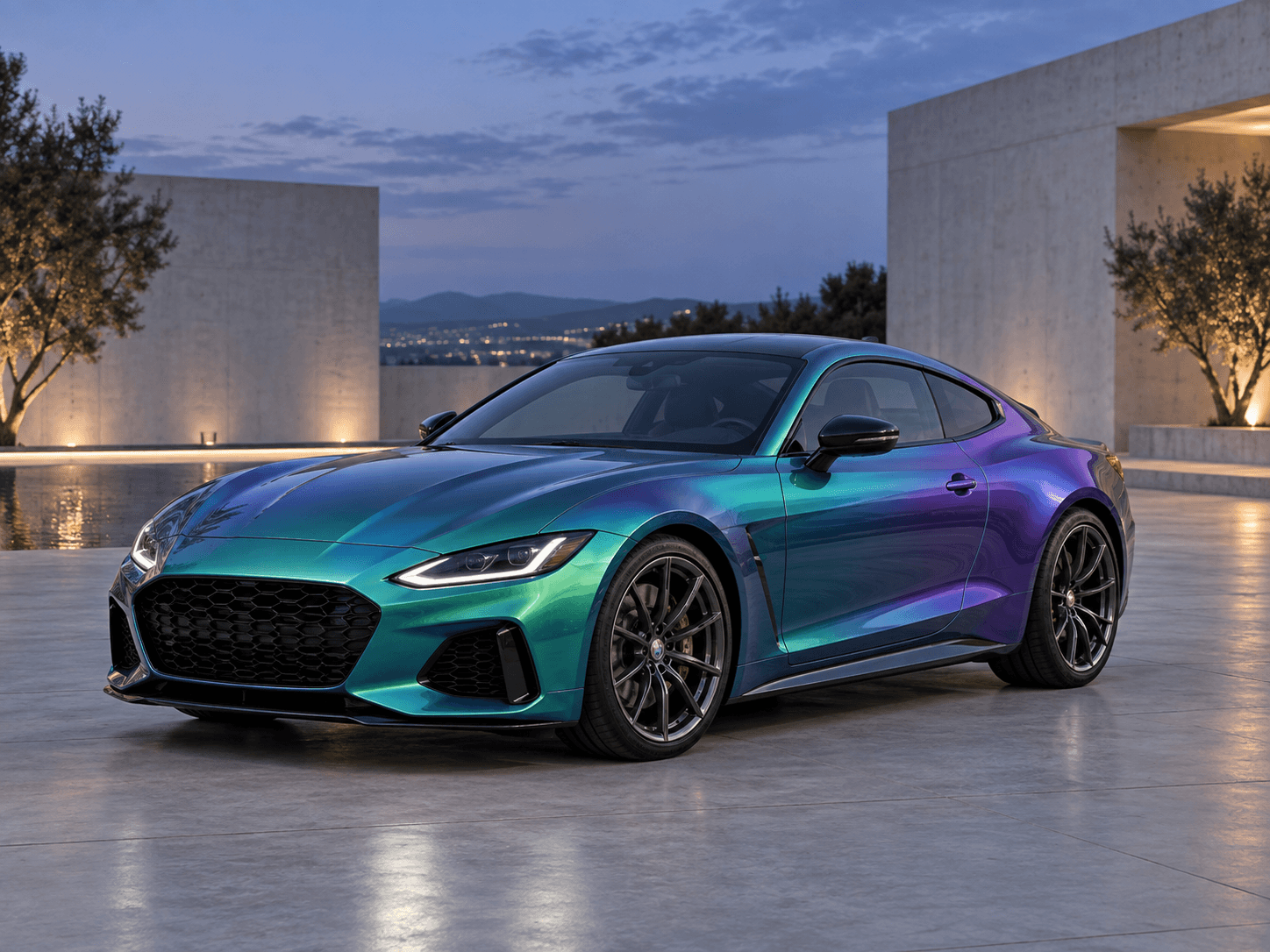
Colour-shift finish
Example prompt
Apply a glossy colour-shift vinyl wrap that moves from teal to violet across the body panels. Keep the original car shape, wheels, badges, windows, camera angle and background. Change only the body finish.
Studio guide
Start with a photo of your car or van. Try a new colour, explore car wrap designs or build business signage, then compare your concept before speaking to an installer.
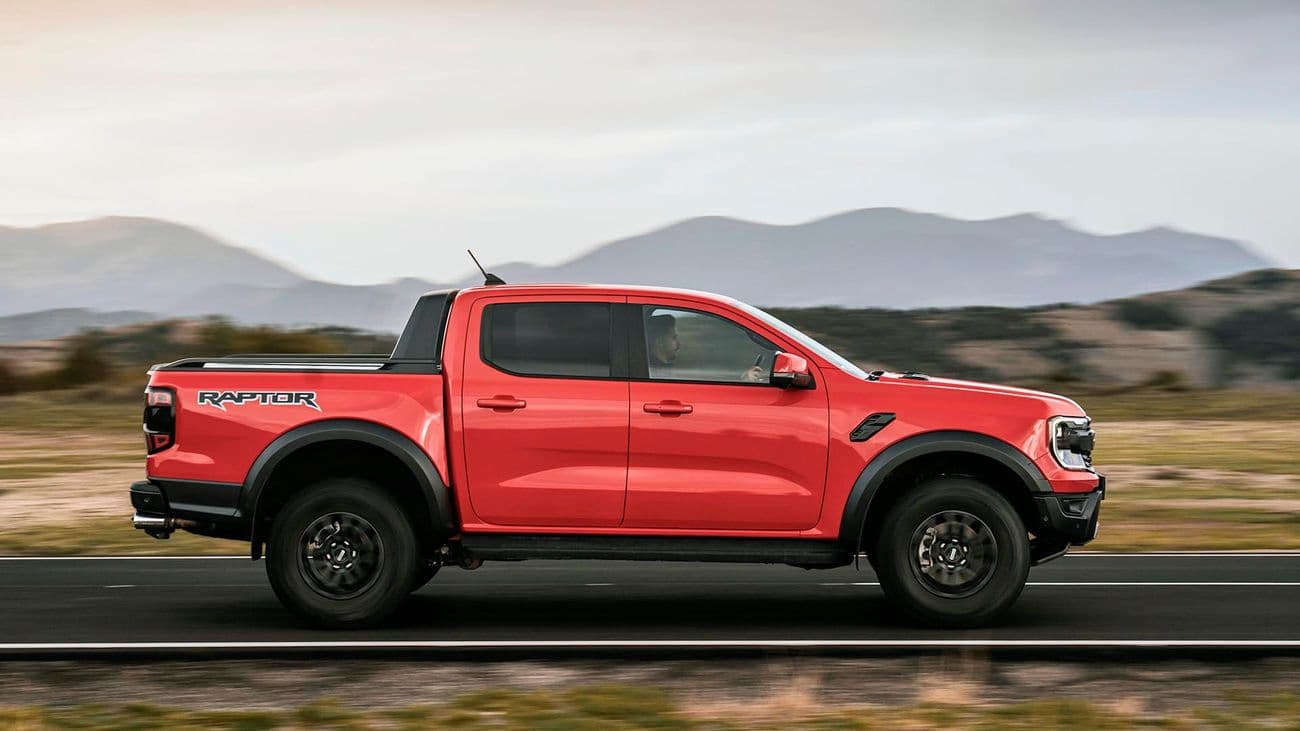
In Upload your car, choose a JPG, PNG, WebP or GIF up to 10 MB. A side or three-quarter view in even daylight makes it easier to judge the panels you want to wrap.
Use Add reference photo for a second image, such as a logo or wrap style. Upload your vehicle first and the reference second. Explain which details to borrow and what to keep unchanged; the reference guides the result rather than guaranteeing an exact transfer.
Under Choose a look, select a suggested style or write your own AI prompt. The basic principles are simple: name the colour, describe the automotive finish, say where the design belongs and keep the vehicle details you want to preserve.
For car paint colours and paint effects, use concrete descriptions such as satin black, metallic blue or gloss vinyl. Add a HEX colour as a visual reference if useful; it does not guarantee a physical material match. Start with one clear direction, then change one detail at a time.
These AI-generated inspiration images show the design directions below. Your result will depend on your own vehicle photo.
Apply a glossy colour-shift vinyl wrap that moves from teal to violet across the body panels. Keep the original car shape, wheels, badges, windows, camera angle and background. Change only the body finish.
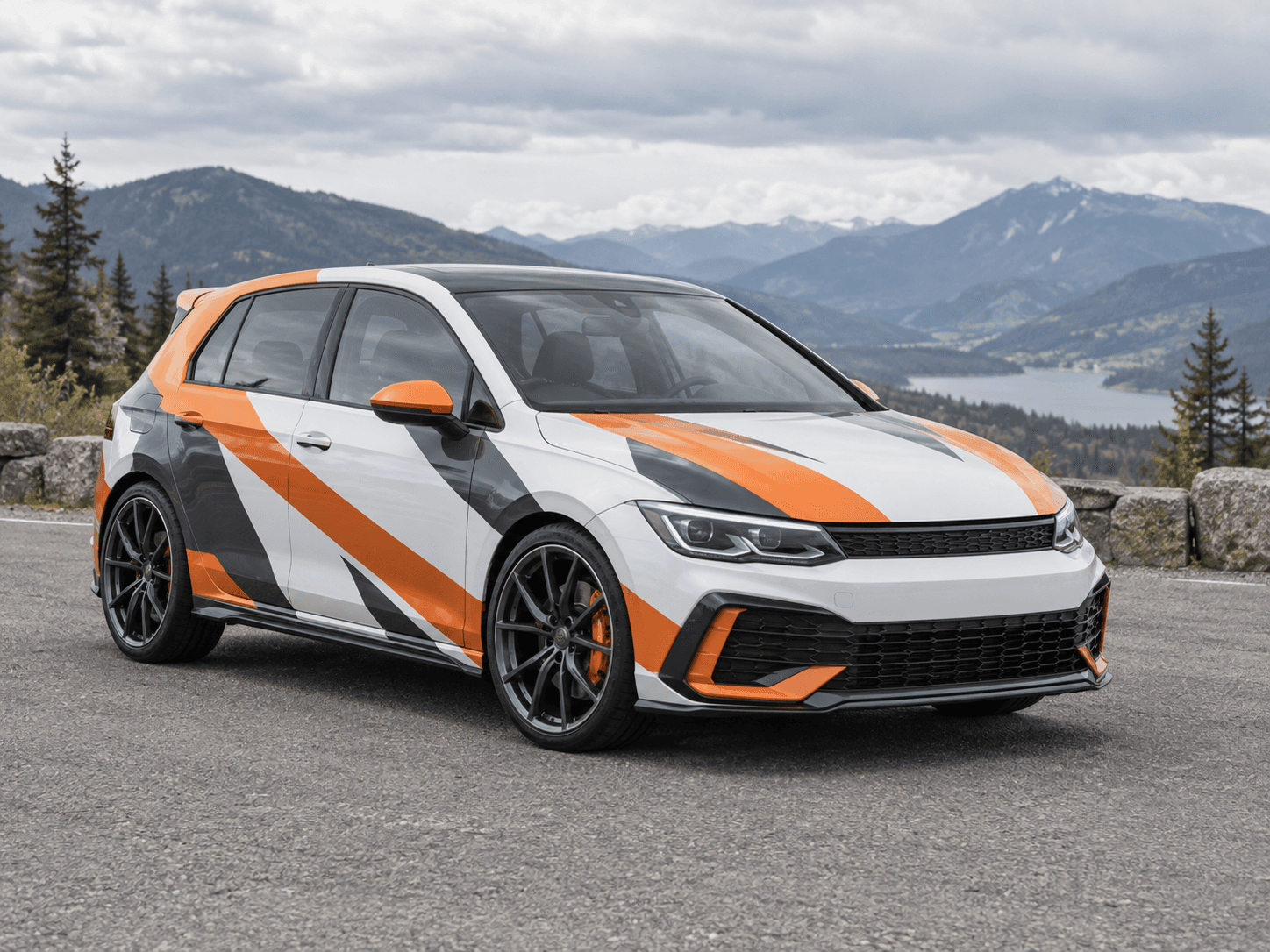
Create a white, orange and charcoal rally-inspired wrap with bold diagonal stripes along the doors. Keep the original vehicle, wheels, lights, windows and background unchanged. Do not add sponsor names or extra text.
Avoid conflicting instructions and changes to body kits, wheels or suspension unless you want them. Writing “8K” in a prompt does not change the resolution selected in the studio.
Choose Landscape · 4:3 for a broad vehicle view, Square · 1:1 for a square composition or Portrait · 3:4 for a taller image.
Keep this concept private is on for new drafts. Leave it on to keep the result out of the community gallery. Select Generate concept · 1 credit when ready, and sign in if prompted.
View credits & pricingAn existing draft keeps your saved settings. Drafts stay on this device for 24 hours after editing; they are not a permanent project archive.
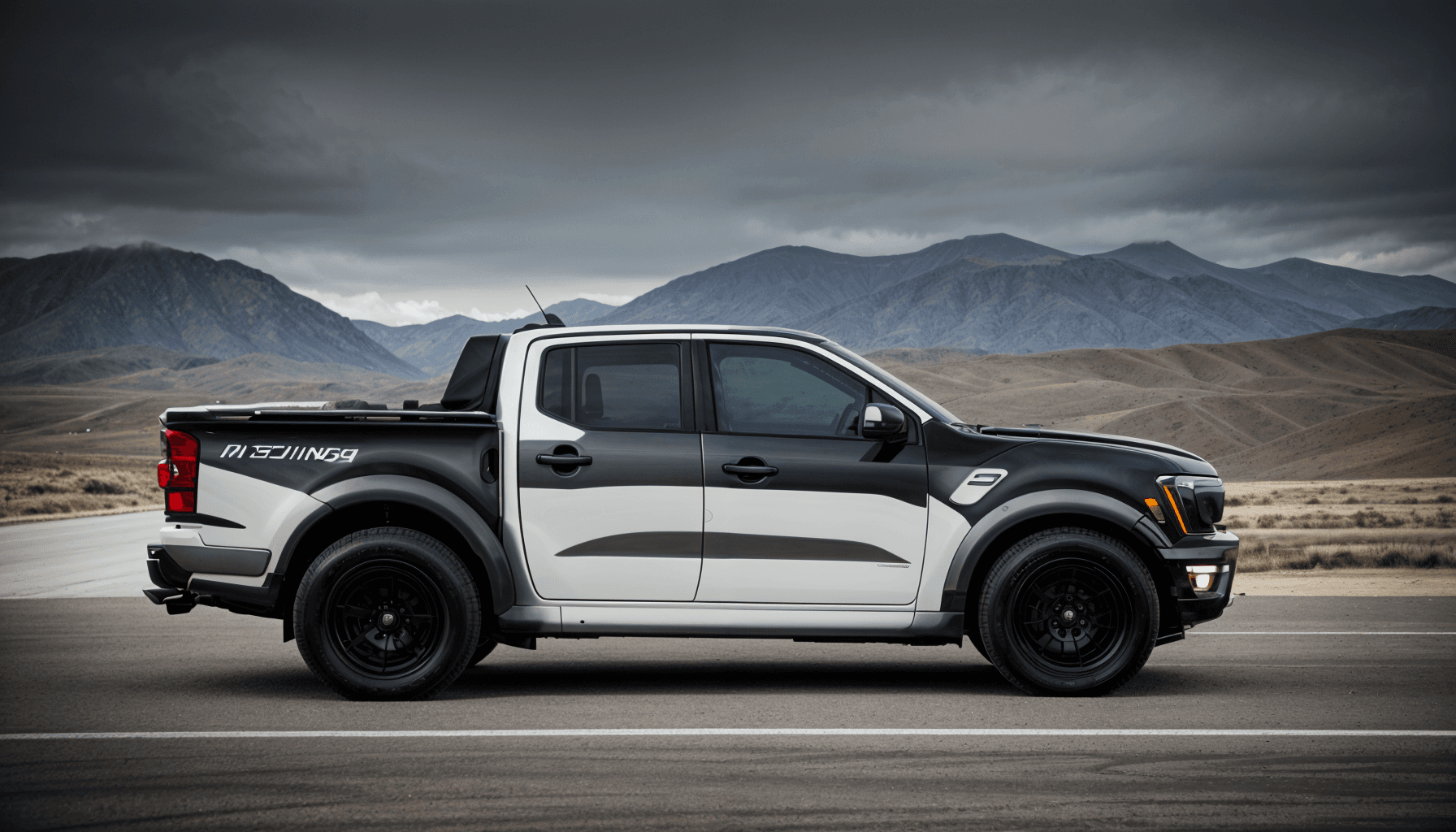
Your results appear under Your concepts. Open a finished image to compare it with the original photo, inspect it at a larger size, copy its prompt or download it.
Give a running generation time to finish and check Your concepts before submitting it again. To explore a variation, reuse the prompt, change one detail and generate another concept; each new generation uses another image credit.
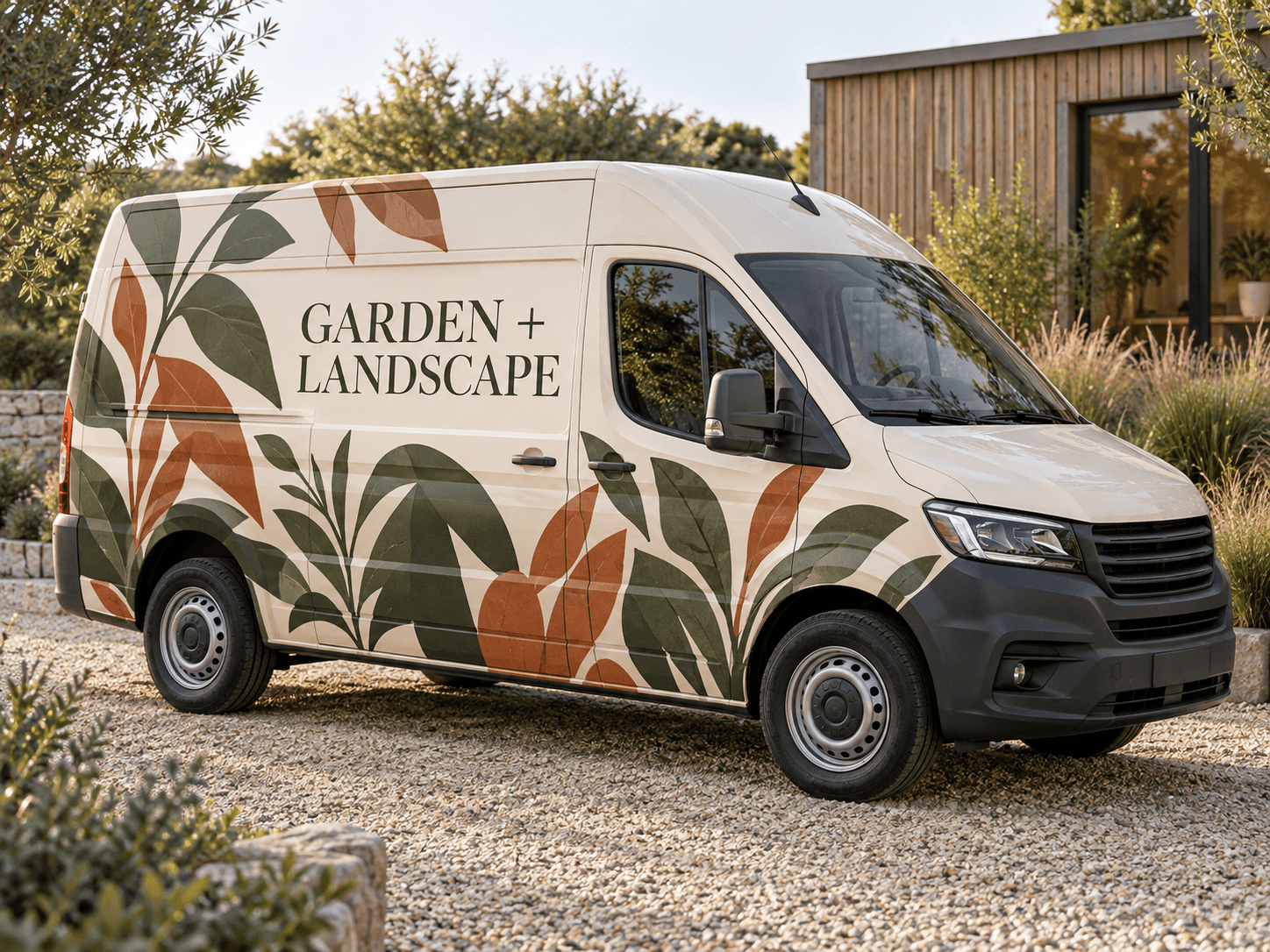
For tradespeople
An AI concept communicates your design direction. It is not a scaled wrap template, cut file or print-ready artwork.
Find a car wrap installer